
In just two minutes, you can connect Swallow to ChatGPT and start searching trusted, cited information across thousands of SERFF filings. This quick tutorial walks you through the setup, giving you a faster way to find answers, investigate filings and uncover insights that could otherwise take days of manual research.
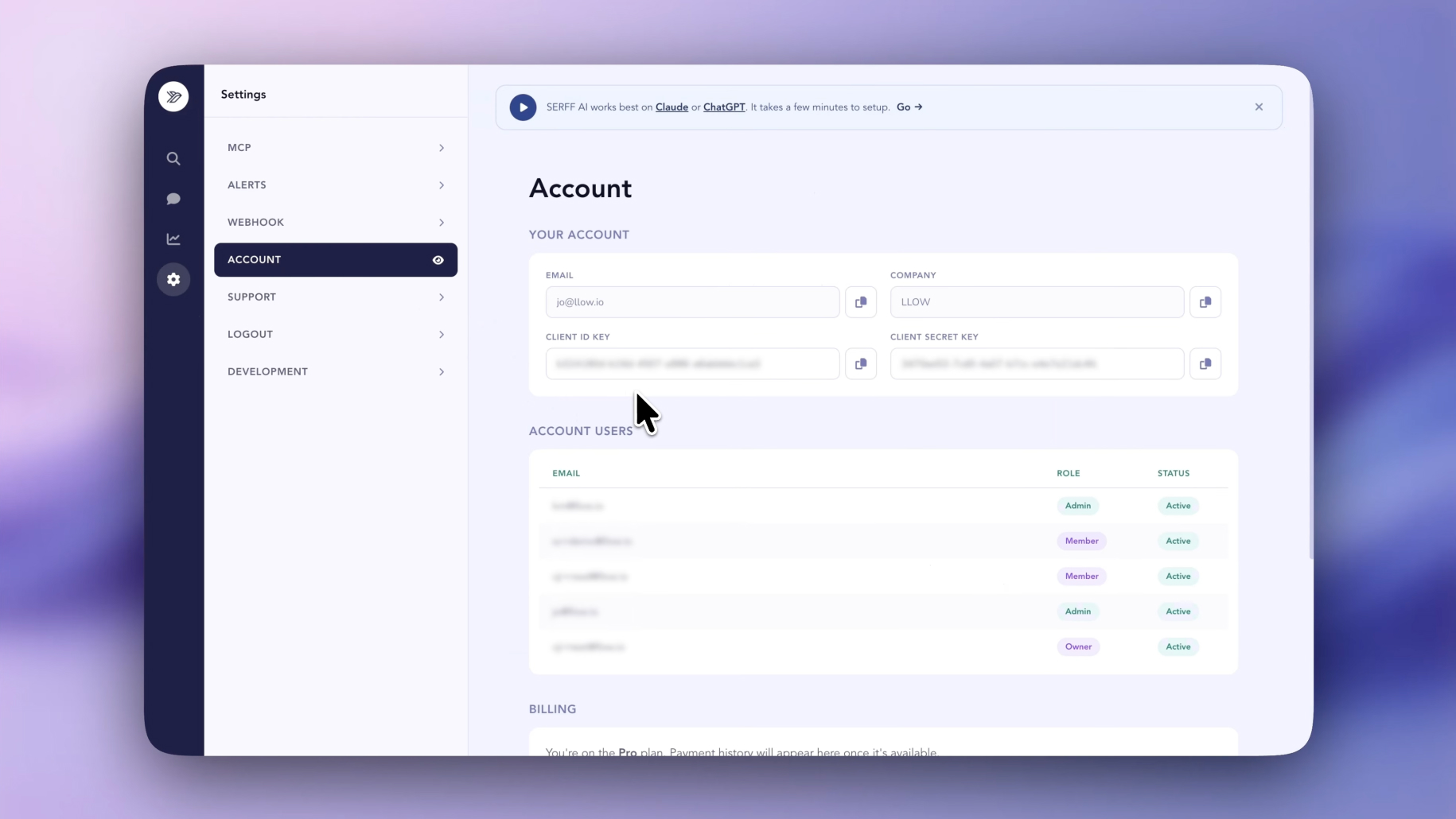
Log into SERFF.ai and in your account section you will find both your Client ID and Secret ID.
If you’re new to Swallow, you can register for an account and we’ll provide your credentials during onboarding.
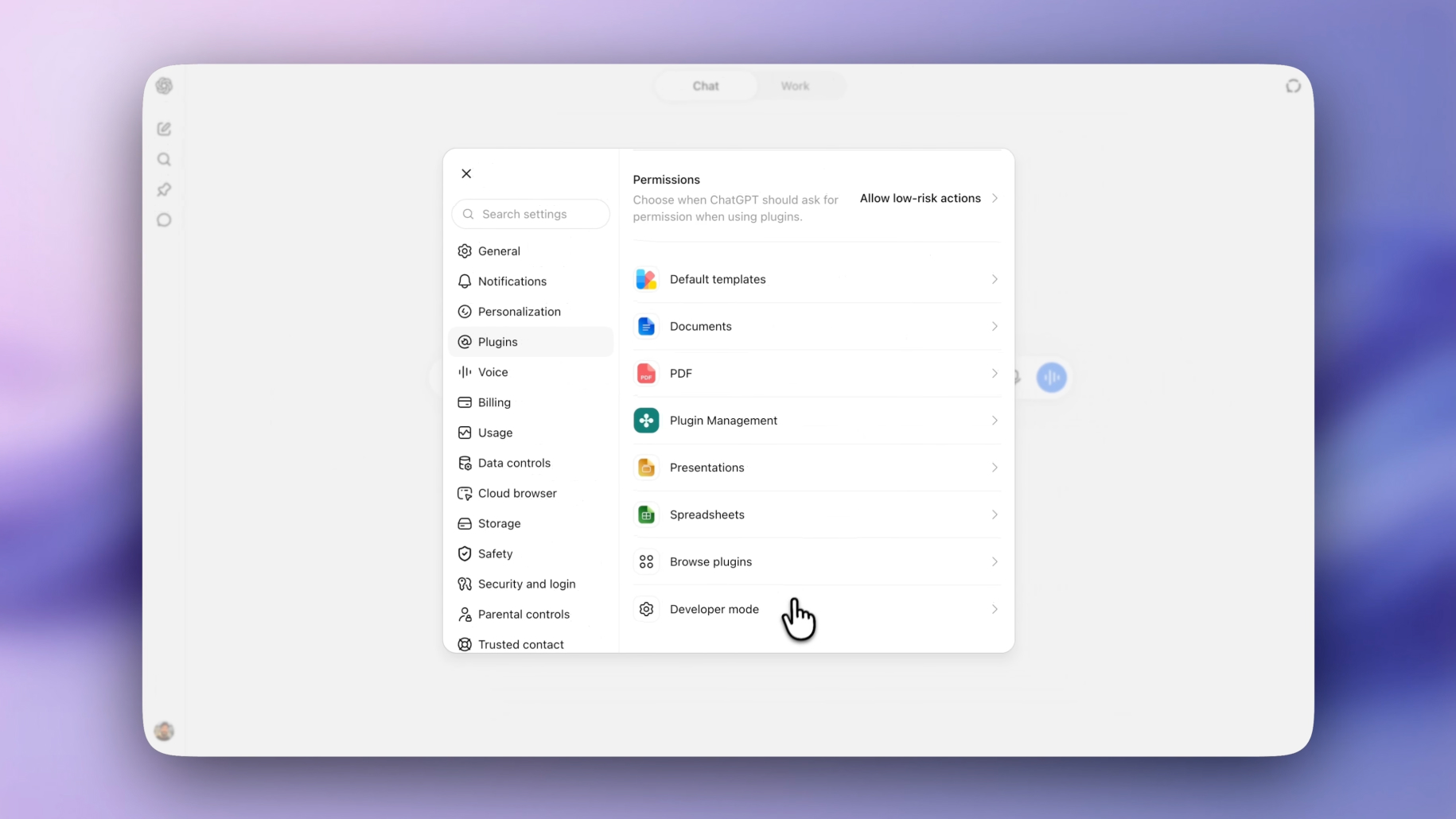
Click your profile picture and navigate to Settings. Then click on the Plugins menu item and in there click Developer mode.
Toggle Developer mode to ON and then return to Plugins.
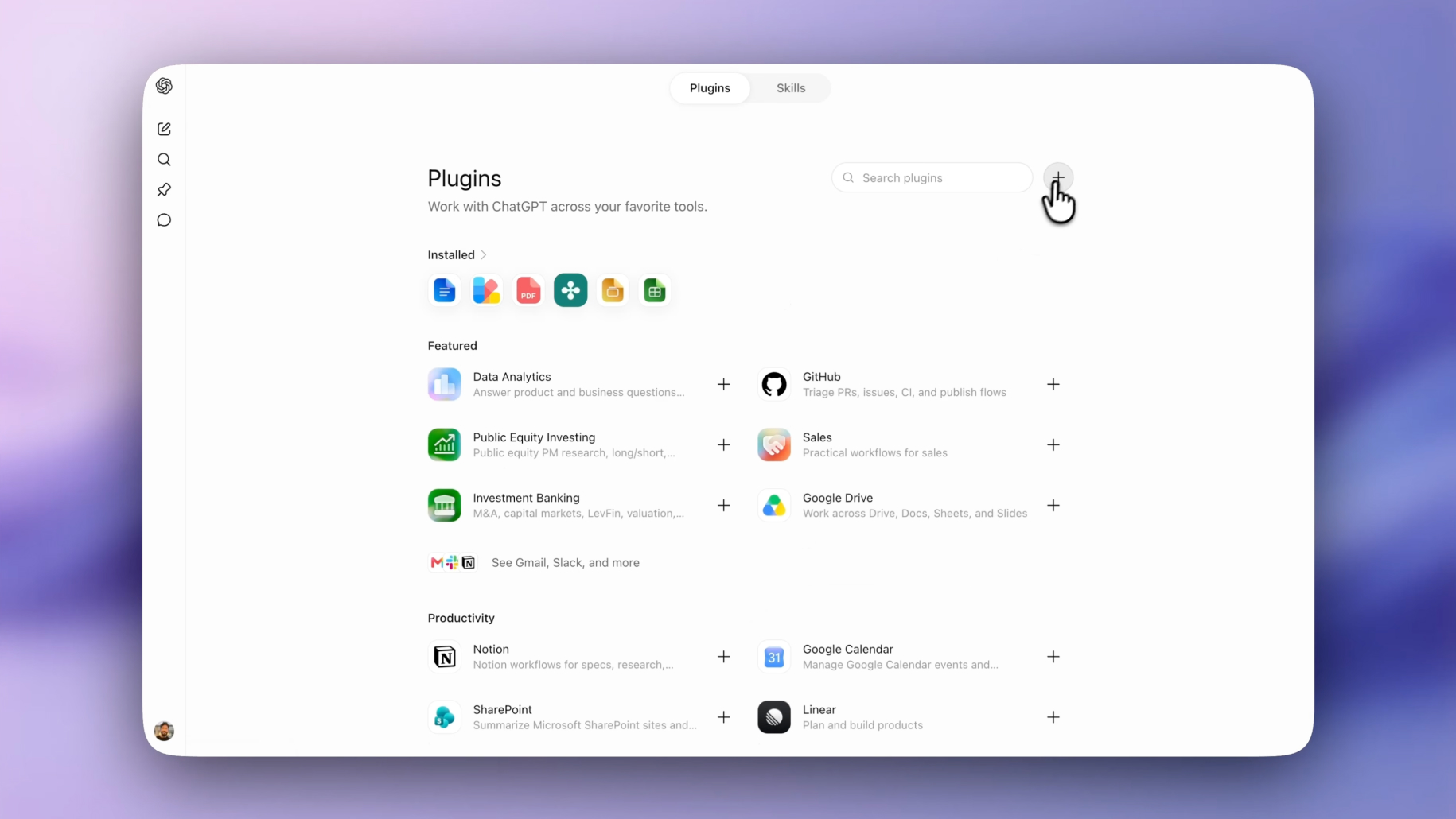
Back in Plugins, scroll down and select Browse Plugins. From here click the Plus icon which will pop up a modal to add a custom plugin.
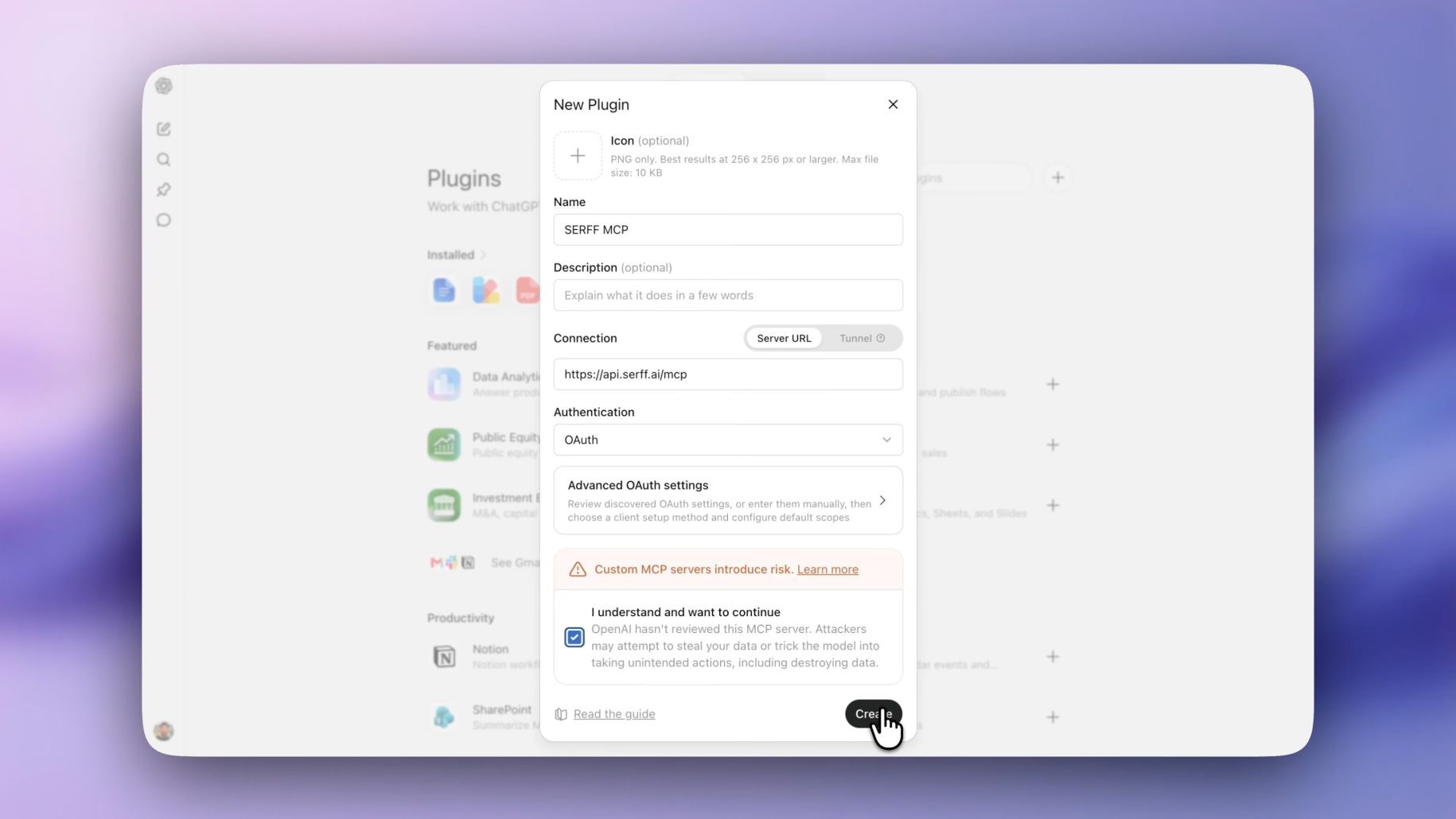
ChatGPT will prompt you for connection details and configuration values.
Enter the following as seen below:
SERFF MCP & https://api.serff.ai/mcp - Then check the box and then click Create.
ChatGPT will prompt you to enter your Swallow API credentials , which we discussed in Step 1.
Pasting them in will securely and privately connect ChatGPT to your SERFF.ai Account.
You can find your MCP credentials in Settings → Account → Copy the User Keys
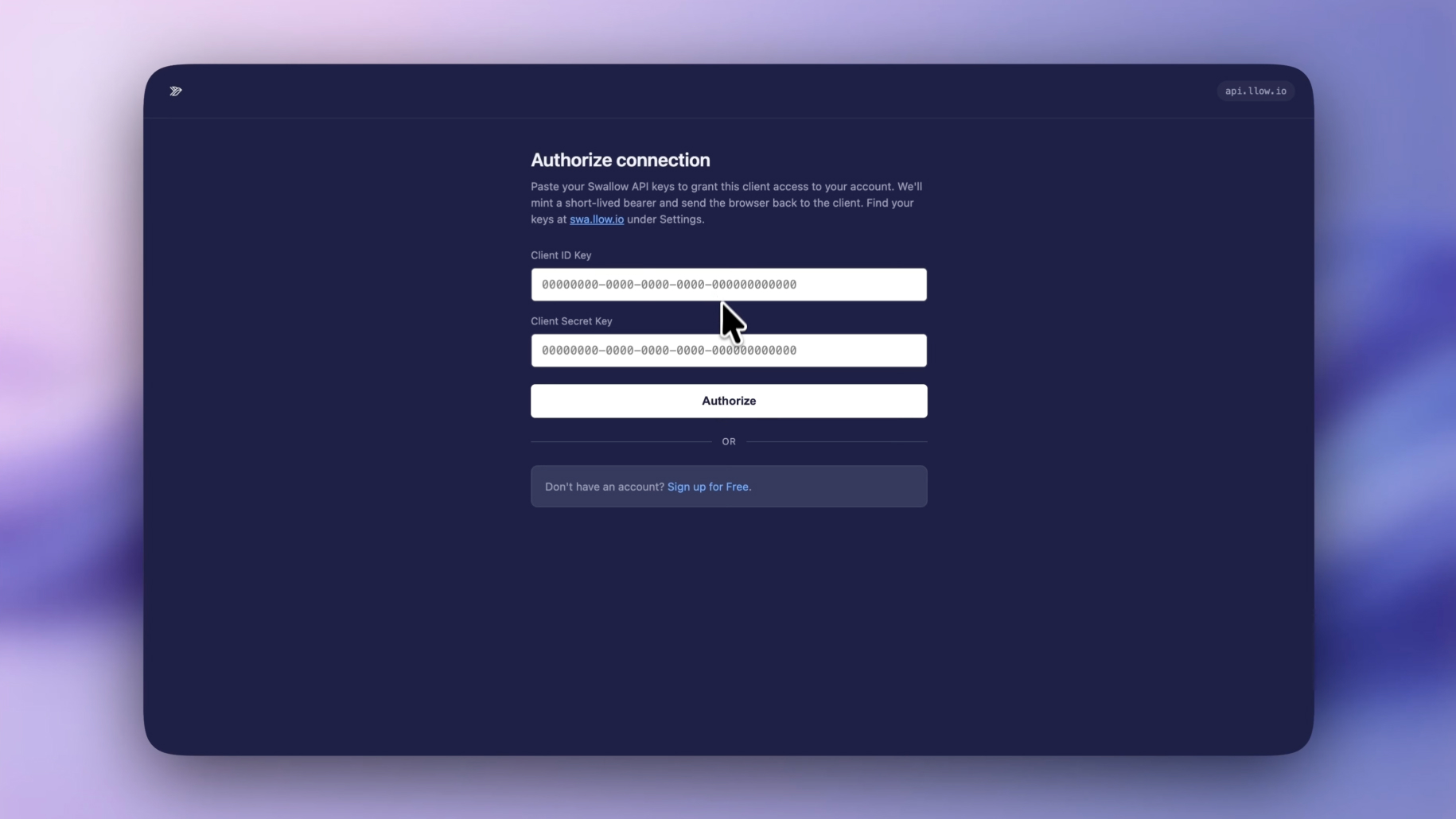
Once authenticated, you should now have access to SERFF search and filing tools directly within ChatGPT. With the integration active, ChatGPT can securely search, analyse and interact with insurance filings using natural language prompts.
Close the settings modal and begin a new chat to start exploring SERFF filings, rate changes, competitor activity and rating logic through conversation.
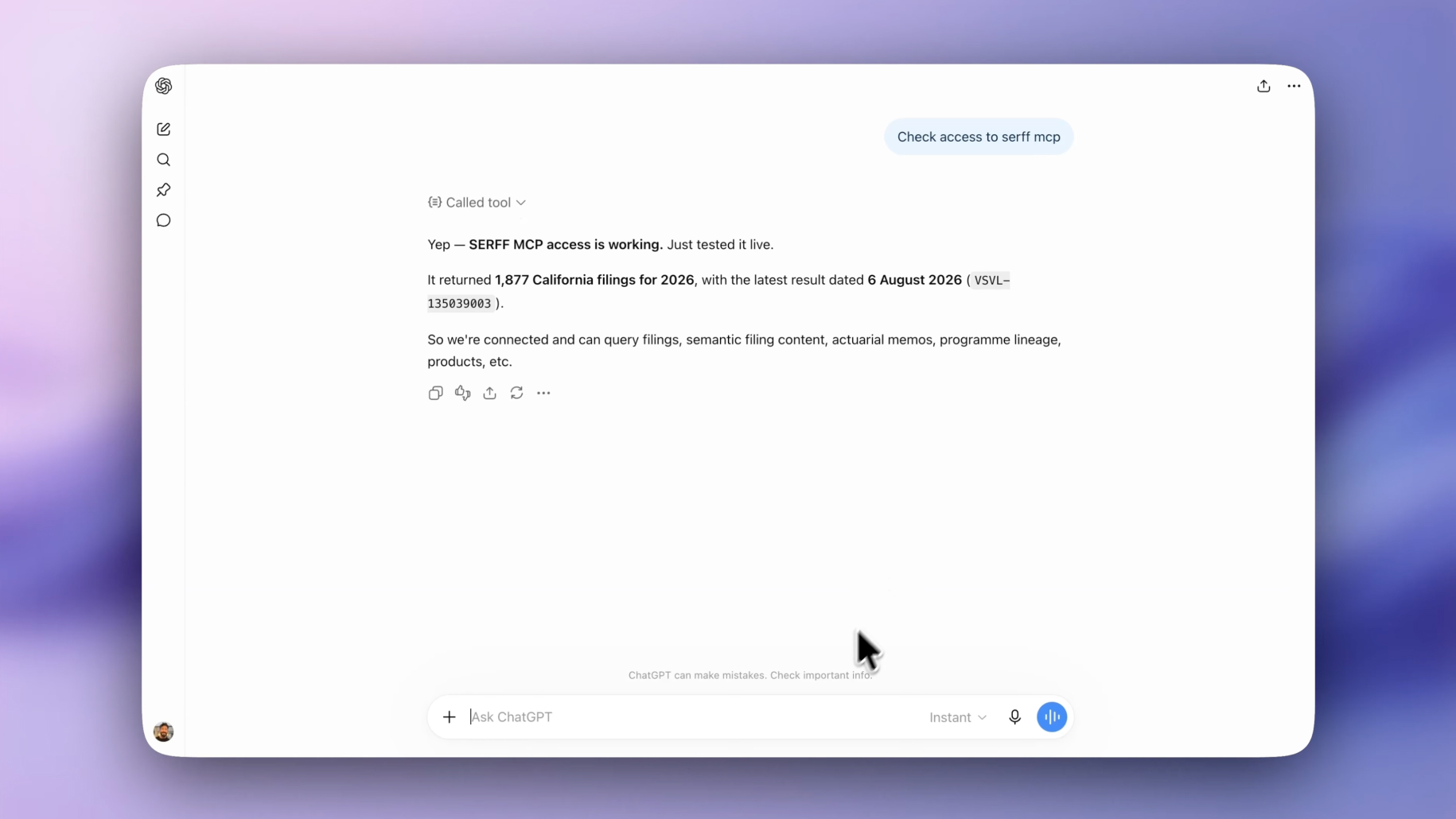
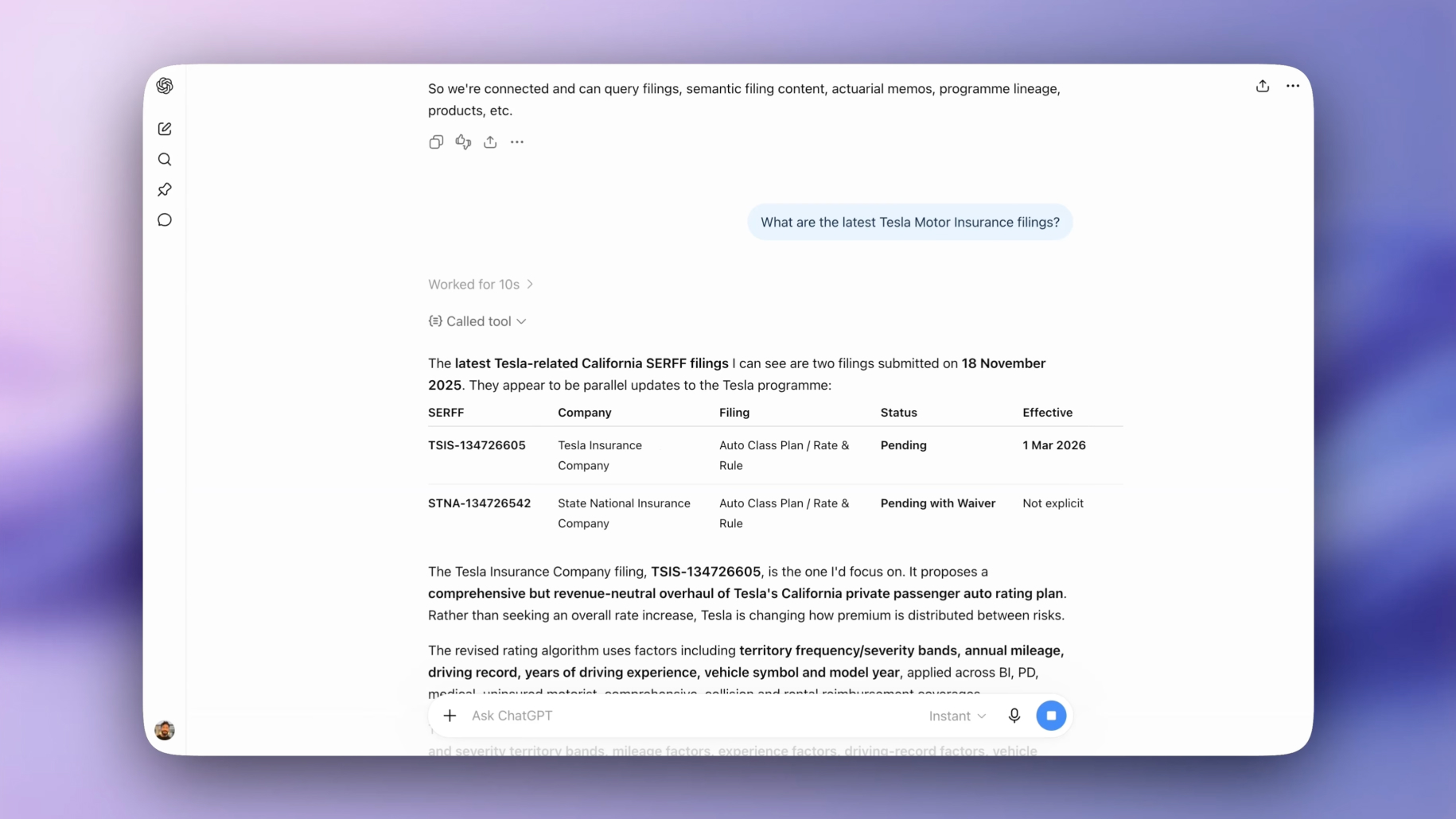
With Swallow connected to ChatGPT, you can turn hours or even days of manual filing research into a simple conversation, with answers grounded in trusted SERFF data and linked back to the source.
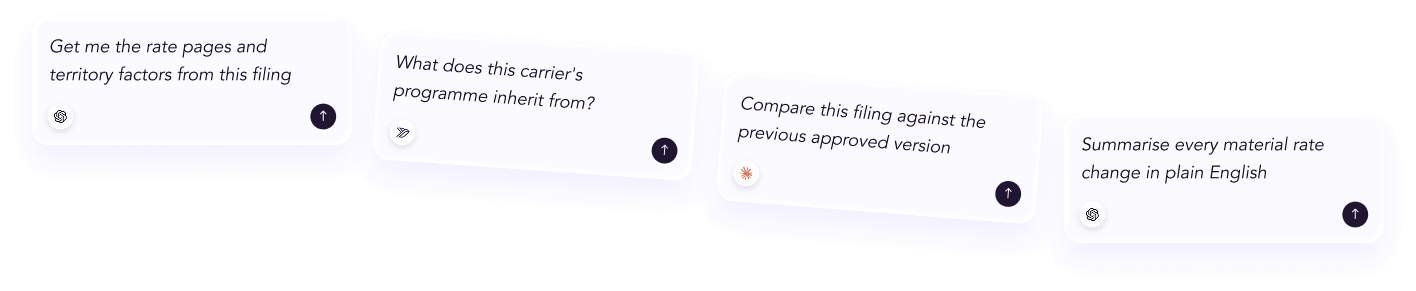
And when you want to go deeper, our dedicated platform gives you even more ways to search, explore and analyse filings, all in one place. Simply sign up below to get started.





 ChatGPT
 Claude
.png)
.png)
.png)
.png)